Themes - Using Advertisement Blocks
Google ad – Arc Block
Key features
- Renders standard DoubleClick for Publishers (DFP) Ads, which is now part of Google Ad Manager
- Arc sends ad calls to DFP requesting multiple standard sizes; DFP returns creatives to match one of those sizes
Requirements
- You must have a publisher account with Google Ad Manager.
- You must have at least one Creative in your ad library for each ad type that Arc sends ad calls for
- By selecting the Google Ad – Arc Block and not electing to pursue a Custom Ad Block implementation, you may need to adjust your ad strategy as necessary in order to utilize the out-of-the-box Google Ad – Arc Block. Arc is not responsible for adjusting the Themes product to meet a client’s specific ad mapping needs, nor for changing ad setup in the client’s Google Google Ads account.
- The Google Ad – Arc Block does not have built-in support for consent management. If your organization requires consent management for GDPR or CCPA-related strategies, you may need to eject from this block and customize it to do so.
Specifications
Ad Types
Google Publisher Tag (GPT) Notice: On March 27, 2023, GPT released an update that impacts the handling of negative and zero size values provided to the googletag.defineSlot(). As the right rail cube currently uses [0,0] to exclude requests from mobile, this update may have an impact to the rendering of this ad type. While the Themes team works on an update to the Google Ad block, it is recommended that the cube or flex cube ads are used in place of the right rail cube. If your organization is using a custom ads block, you must update your code. To learn more, see Google’s Publisher Tag release notes.
| Type | Breakpoints and Sizes | Notes |
|---|---|---|
| Cube | All Devices: 300x250 | |
| Flex Cube | Desktop: 300x600, 300x250 Mobile: 300x250 | |
| Right Rail Cube | Desktop: 300x250, 300x600 | Designed to be used on a Desktop page with a Right Rail: no ads are requested from Mobile devices -see the GPT Release Notice for current impacts to this ad type |
| Medium Leaderboard | Desktop + Tablet: 728x90 Mobile: 320x50 | |
| Large Leaderboard | Desktop: 970x250, 970x90, 728x90 Tablet: 728x90 Mobile: 320x50, 300x250 | 300x250 Mobile size was added in the Themes 1.23 release (August 2022). |
| Out-of-page (OOP) | 1x1 | |
| Gallery Cube | All Devices: 300x250 | If a value is configured for the Theme SettingGallery Cube Clicks**,** then this ad type can display between images in a gallery |
Targeting parameters
Each ad call includes the following Page-level KVP parameters. These are sent as part of cust_params in the ad call:
| DFP parameter key | Value | Restrictions | Source |
|---|---|---|---|
| arc_id | Content ID for an article, video or gallery | Applies to thesepage-type: • article • gallery • video Blank for other page types | _idfrom global content ANS |
| section_id | Website section ID for an article, video or gallery | Applies to thesepage-type: • article • gallery • video Blank for other page types | websites.[website].website_section._idfrom global content ANS |
| tags | Tags applied to the article, video or gallery content | Applies to thesepage-type: • article • gallery • video Blank for other page types | Comma-separated list of values intaxonomy.tags.slugfrom the global content ANS |
| page_type | Type of page as designated by the page metadata, per this documentation:Themes - Page TypesPossible values are article, video, gallery, section, tag, author, search, homepage | Populates ifpage-type is set on a page or template. Blank if this value is not set. | value ofpage-typefrom the PageBuilder metadata for the given page or template |
Each ad slot within a given page also includes slot-level targeting parameters that specify more information about that particular ad. These are sent as part of prev_scp in the ad call.
| DFP Parameter Name | Value | Restrictions |
|---|---|---|
| ad_type | Type of ad as defined above. Possible values are: • cube • flex_cube • right_rail_cube • leaderboard_medium • leaderboard_large • oop • gallery_cube | None |
| position | Numerical position of that particular ad type on the page. For example: If there are two Cube ads, the first will have position=1 and the second will have position=2. Additionally, a single Flex Cube on that same page will have position=1. | None |
Ad unit paths
The ad unit path for the ad call is constructed from several variables so that it has the following format:
/{DFP ID}/{Optional Website Ad Path}/{Section ID}
The ad unit for a given page can be seen in the ad call in the iu_parts parameter:
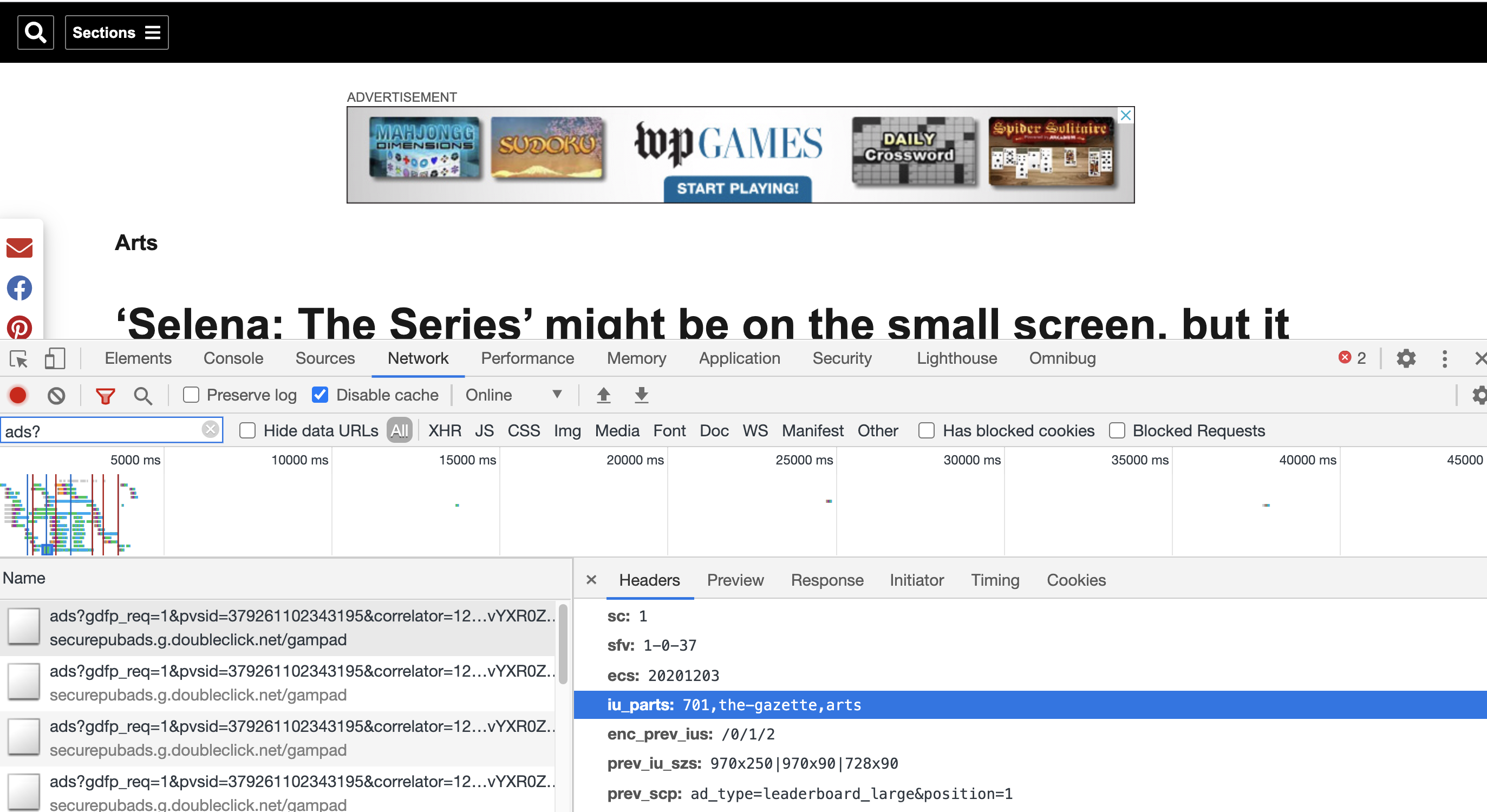
| Path position | Source | Notes |
|---|---|---|
| {DFP ID} | Theme Setting:dfpId | This is your DFP Publisher ID. It is typically a 3-5 digit number. For example, it might be 12345. |
| {Optional Website Ad Path} | Theme Setting:websiteAdPath | Customers who run multiple websites out of their DFP account typically give each website its own ad unit directory. For example, imagine the publisher with the DFP account 12345 has two websites: The Gazette and The Sun. Ads for The Gazette website are in an ad unit directory namedthe-gazette, and ads for the sun are inthe-sun. These values can be entered as thewebsiteAdPath for the respective website, so that all ad units on The Gazette website begin12345/the-gazetteand all ad calls on The Sun website begin12345/the-sun. |
| {Section ID} | ANS data: Website Section ID | The section ID corresponds to the primary section for piece of content on the given website. For example, The Gazette might publish a piece of content under the**/local** section, and The Sun website might circulate it to their**/news/politics**section. The full ad unit for The Gazette would be12345/the-gazette/local, while the full ad unit for The Sun would be12345/the-sun/news/politics. |
Ad unit path overrides
The ad unit path can be overridden at the Page/Template level and it will only alter the ad path for that Page or that Template. This can be useful if you wish to set a certain unique/custom path for a page type – for example, if you want the ad unit path on the homepage to be home, you can set ad-path to home.
- In PageBuilder, on the Page/Template’s Page Metadata, add a new key-value pair
- Set the key to ad-path
- Set the value to be whatever value should replace the Section ID in the ad unit path. If the Page/Template’s Section ID includes a Section with Sub-sections, then whole Section path is replaced
For example: A normal ad unit path is /{DFP ID}/{Optional Website Ad Path}/{Section ID}
If the Section ID includes Sub-sections like /sports/football but the Page Metadata → ad-path is set news, then the new ad unit path would be:
/{DFP ID}/{Optional Website Ad Path}/news
How to use the Google Ad – Arc Block
-
From Google, you should have a DFP Publisher ID. Set this as the dfpId Theme Setting in your blocks.json file – this is required. Optionally, you may set the Theme Settings values for websiteAdPath and galleryCubeClicks.
-
Add a Google Ad – Arc Block to a page. You’ll see four Custom Fields:
Lazy Load Ad? If true, the request and rendering of the ad will be paused until it approaches the user’s viewport. Typically, lazy loading can help improve Lighthouse scores by enabling pages to load faster, reducing resource consumption and contention, and improving viewability rate.
Ad Type: The list of ad types of various sizes that you can place in a region of your page
Display Advertisement Label? If true, a label appears over the ad on the published page. The default text is ADVERTISEMENT, but this can be overwritten through the Advertisement Label Theme Setting.
Reserve space for Ad? If true, the dimensions specified for the ad slot container are reserved so the layout does not shift. Blank space is visible prior to an ad being loaded. Reserving adequate space on your page for ads is key to minimizing layout shift.
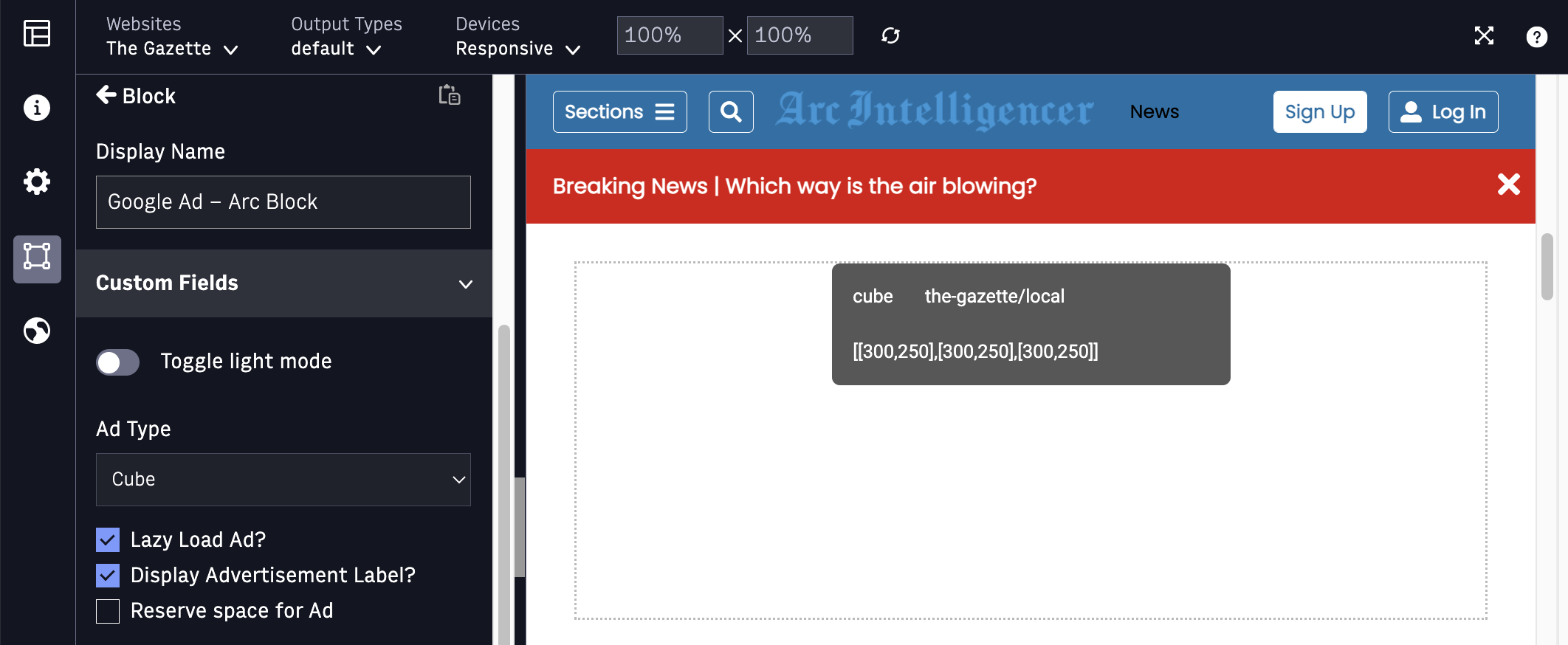
- Choose the Ad Type you wish to place on the page, and whether or not you want the advertisement label to display. In the PageBuilder Editor, you’ll see a placeholder for this ad; on the published version of the page, the ad call will go out to DFP and if it matches conditions for a creative, you’ll see an ad.
See documentation for the Article Body – Arc Block for details about how to place ads within the article body content.
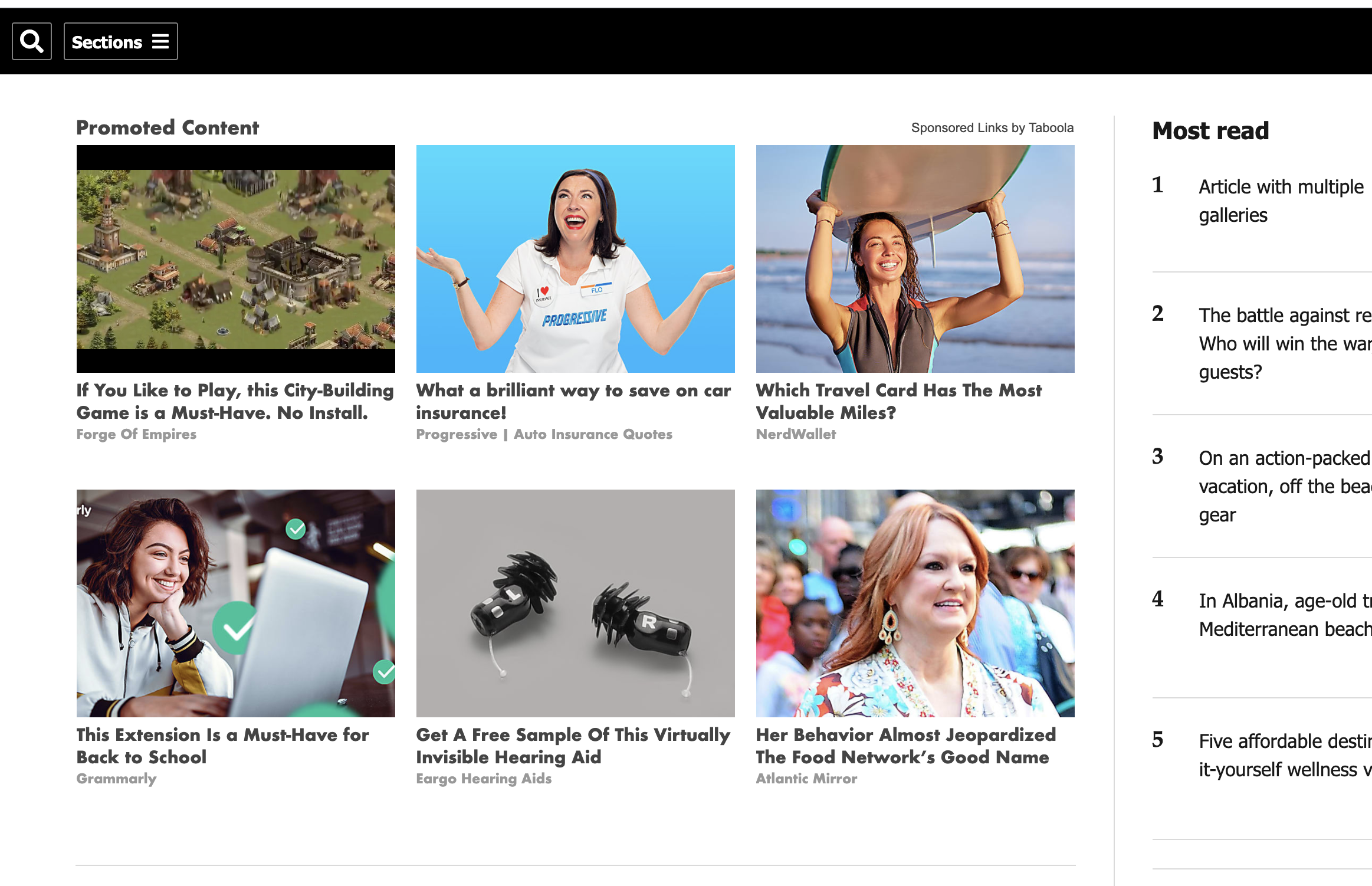
Key features
- Renders generic Taboola embed code
- Taboola is responsible for styling
Requirements
- You must have a publisher account with Taboola.
- You must have at least one placement from Taboola.
- Your placements must be compatible with Taboola’s Generic JavaScript Placement Code
Taboola ad – Arc Block
-
In your account info from Taboola, you should have a Publisher ID. Set this as a Theme Setting in your blocks.json file.
-
Add a Taboola ad block to a page. You’ll see three Custom Fields. Fill these out – these correspond to The Values You Received From Taboola about your placements:
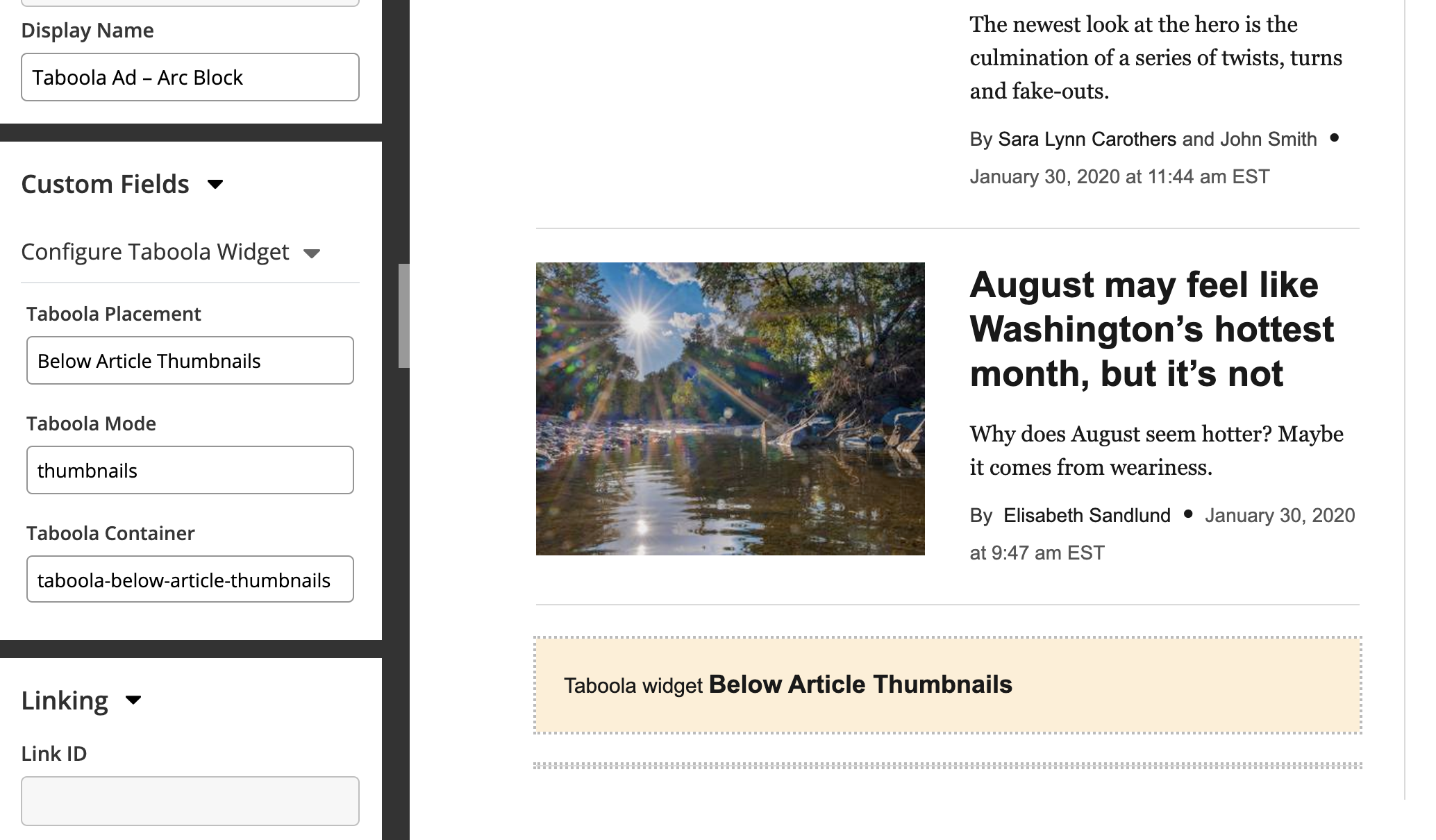
- Taboola Placement
- Taboola Mode
- Taboola Container
- If you have multiple Taboola placements, you can add multiple Taboola blocks, following step 2 above. If any placement is used on more than one page or template, Arc XP recommends that you put the Taboola blocks on Themes - Fragment Page + Linking Guidance for Themes and link to them across the site, so that you can update them all in one place if a change is necessary.
Testing Notes
In PageBuilder Editor, you’ll see a beige Taboola Widget placeholder box instead of the actual Taboola ads (to reduce ad requests in the admin).
When testing on a published page, you may need to use Taboola’s testing parameter, taboola_sim_domain, with the value set to the your production website (for example, washingtonpost.com) – Taboola otherwise only works on domains that have been safelisted. You will also need to follow Taboola’s Instructions For Updating Your Ads.Txt File. See the Taboola documentation for any additional information.