How to set up Send to Print functionality in Composer
Send-to-print is a button on the Composer Document Actions toolbar that facilitates a manual external third-party print integration with Arc XP.
Arc XP is a digital-only solution and does not provide any capabilities for print. To print, you must integrate the content that you author in Composer to a client print system.
Clicking the Send to Print button in Composer does not automatically save content to the Draft API. It is recommended users save the content first to generate a new revision_id and then click the Send to Print button.
Saving revisions to a story after that story has been sent to print will not re-run the send to print process. You must initiate that process again by clicking Send to Print.
Integration paths
Composer supports two ways to connect to a print system:
Legacy (direct URL) — Composer calls a print endpoint URL that you configure in organization settings. Use this path if you maintain a standalone print service.
IFX — Composer fires a composer: send_to_print event through the Arc Integration Framework. Use this path if you manage print delivery through an IFX integration.
Using send-to-print
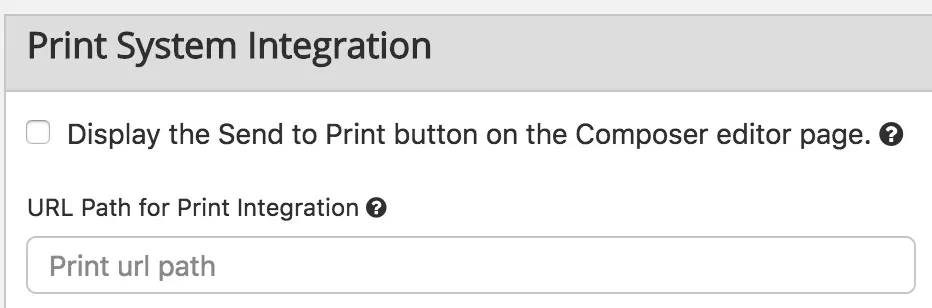
After Arc XP provisions the send-to-print URL, you can then enter the URL into the Arc XP print integration section of the Composer Settings page.
When the user is writing a story and reaches a completed state, they save the story and then click the send-to-print button.
When clicked, the Composer UI generates a request to the Composer app server, which forwards the request to the configured send-to-print URL.
When the send-to-print system responds with a success, the user sees a success message; otherwise, the system presents an error message.
 |
Implementing send-to-print (Legacy)
Composer org settings has values:
var org_settings = {
    "displaySendToPrint": true,
    "sendToPrintURL": "https://domain.com/path"
}
When displaySendToPrint = true, then the button appears to the user in the Document Actions Toolbar of the Compose page.
When you click the send-to-print button, Composer generates a request to the Composer app server (/composer base path).
GET https://org.arcpublishing.com/composer/api/stp?story_id=ABC&revision_id=123&canonical_url=&print_url=https://domain.com/path
story_idis the ID of the currently viewed story in Composer.revision_idis the revision ID of the currently viewed story in Composer.canonical_urlis the canonical URL of the currently viewed story in Composer.print_urlis the canonical URL of the currently viewed story in Composer.
Composer forwards the request to the configured print system as follows.
GET https://domain.com/path?story_id=ABC&revision_id=123&canonical_url=URL
You should maintain a RESTful service that the Send to Print action can call. When called, it should handle the request parameters, perform the required data transformation, and send the content to the print system.
The Composer application handles errors (non-HTTP 200 responses) as a 500 and passes the value of the 200 response through to the end user as a success.
Implementing send-to-print (IFX)
To use the IFX path, set useiFXSendtoPrint to true in org settings:
var org_settings = {
    "displaySendToPrint": true,
    "sendToPrintURL": "https://domain.com/path"
}
When useiFXSendtoPrint is true clicking Send to Print fires a composer: send_to_print event to IFX instead of calling a direct print URL. Your IFX integration receives the event and is responsible for forwarding it to the print system.
Composer sends the following payload to IFX:
{
 "story_id": "<document id>",
  "revision_id": "<revision id>",
  "canonical_url": "<story canonical URL>",
  "canonical_website": "<site token>",
  "date": "<ISO 8601 timestamp>"
var org_settings = {
    "displaySendToPrint": true,
    "sendToPrintURL": "https://domain.com/path"
}
A 202 response from IFX means the event was accepted and forwarded to your integration.
To receive the composer: send_to_print your IFX integration must be subscribed to it:
A new integration through the API
Add composer:
send_to_printto the integration's list of subscribed events.Implement a handler in your integration that receives the event payload and forwards it to the print system.
If no IFX integration is subscribed to composer: send_to_print , Composer displays the error: No IFX integration is registered for the composer: send_to_print event.
Setting permissions
The send-to-print button appears only in Composer when your administrator select the Print System Integration setting within Composer settings. The print button remains hidden when the Print System Integration setting is disabled in Composer. Moreover, the button remains disabled under the following circumstances:
You are in read-only mode or you do not own the lock for the story
Send-to-print is already initiated and the request is still loading