Getting Started with Video
If you’re already using Video Center, you’ll need a few things set up before you start using the app.
Get provisioned for live streaming
You must create a support ticket to request provisioning for Video Center’s live features. You don’t need to request live channels to be set up; Arc XP handles that for you.
Make sure you have a default type and thumbnail set
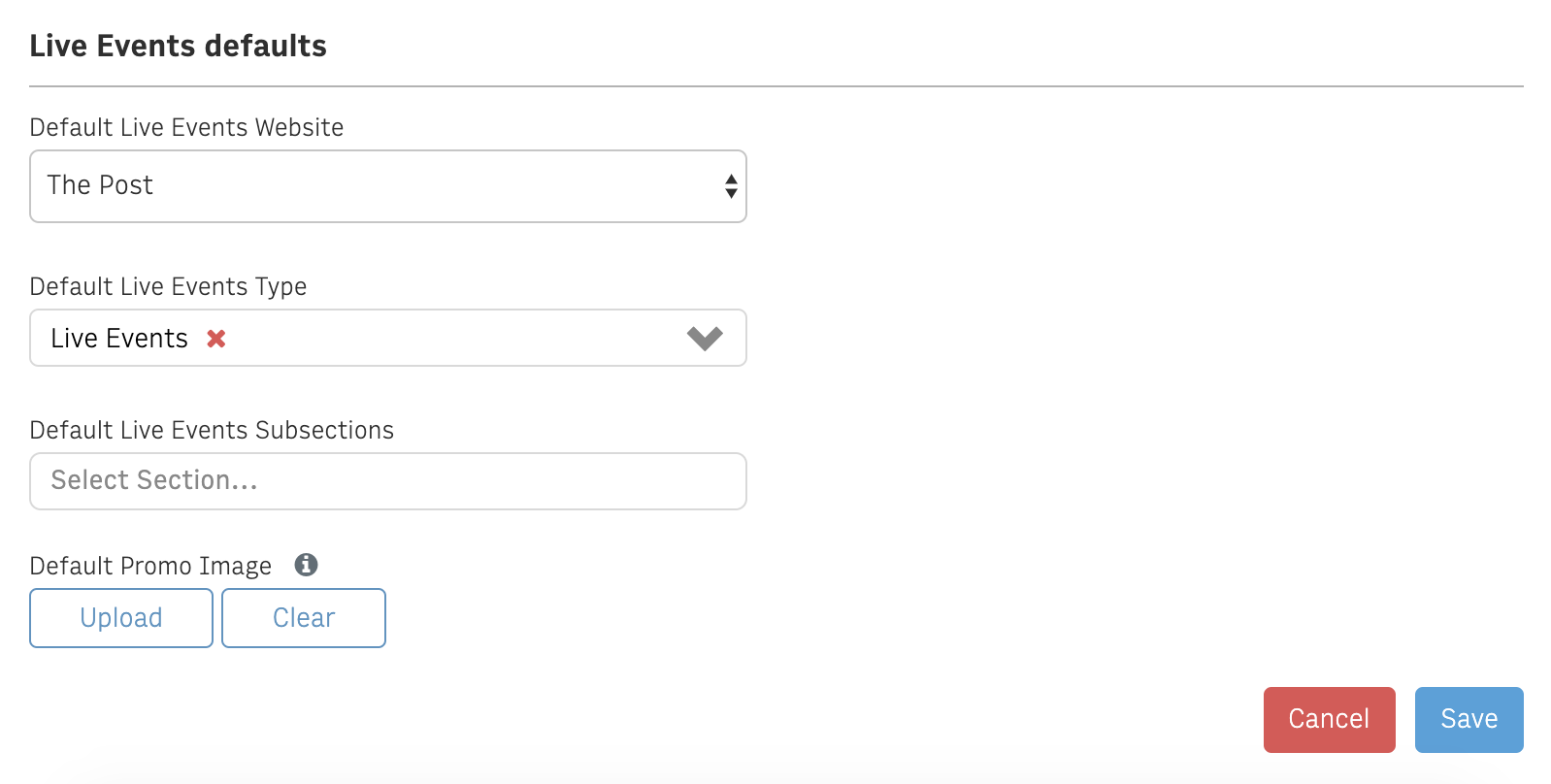
Even though Arc XP lets you upload thumbnails each time you start streaming, you can still set a default thumbnail for Live Events in Video Center Utilities. Go to Server Configurations -> Default Values, and scroll to the bottom. You’ll see a selection for Live Events defaults. Be sure you’ve made a selection for Default Live Events Type as well as Default Promo Image.
Make sure a default category for VOD Upload is set
Similar to Live Events, you must set a default category for video uploads. Navigate to Utilities > Admin Services > Server Configuration > Default Values to find the ANS Import > Default Video Category option.
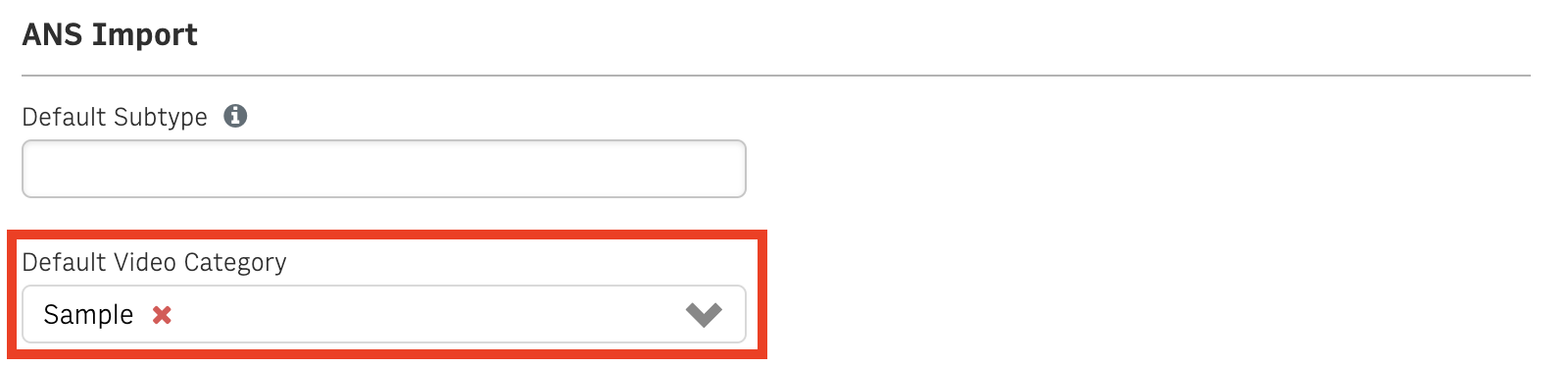
The category of a video can be changed after it’s uploaded, so you simply need to make sure there’s something here - though we recommend you set it to something descriptive if you’re primarily using the Arc XP app.