Getting Started with Compass
Compass gives editorial teams the tools to shape a personalized reader experience across the home page and section fronts. This section walks through the four main areas of Compass and explains what each does and how to get started with it.
Before provisioning, your organization must have an active Compass subscription or an approved trial. Then, make sure your organization has access to Arc XP Compass in Arc Home and your list of sites you want to run on Compass are provisioned through the ticketing process.
Prerequisites
- You have completed the Compass provisioning request through Arc XP Customer Support. This gives you access to the Admin UI.
- You have followed all developer integration processes to enable catch up cards and content recommendations as well as how you will be providing user events (CDP or Arc SDK) described here
Navigating Compass Admin UI
When you open Compass, you’ll land on the Overview for your selected site. From the left rail, you can switch between:
- Overview — per-site analytics for how Compass is performing for readers on this site.
- Editorial controls — apply pin, boost, bury, and exclude signals to stories.
- Adaptive experiences — configure Catch Up Cards.
If you have access to multiple sites, use the site picker at the top of the left rail to switch between them.
Catch Up cards
Catch Up Cards are dynamic modules on the home page and section fronts that catch each reader up on the stories they follow. They surface progress on ongoing coverage, related developments across topics the reader cares about, and a synthesis of what a reader missed since their last visit.
Enabling Catch up cards
To enable catch up cards please follow set up information in the developer portal.
Editorial Priority Controls
Editorial Priority Controls express the newsroom’s judgment about what matters. Editors use them to shape what Compass surfaces to readers. Compass supports four editorial signals:
- Pin places a story at the top of personalized recommendations for every reader.
- Boost elevates a story’s ranking without locking its position.
- Bury holds a story back from personalized surfaces without unpublishing it — useful for expressing editorial context the algorithm can’t infer from behavioral data alone.
- Exclude removes a story from Compass surfaces entirely.
Pinning a story
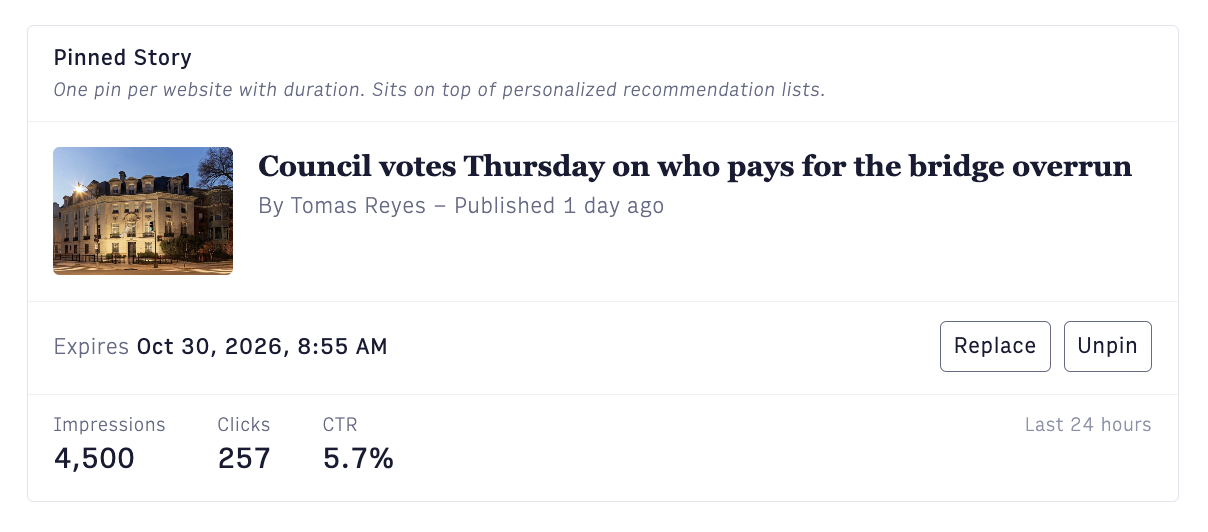
Pinning a story places it at the top of personalized recommendations for every reader on that site. The pinned story stays visible across every reader’s view until the pin expires or you remove it. Only one active pin per site is supported in the current release.Use pin for stories the newsroom actively wants every reader to see — breaking news, an editorial priority story, or coverage the publication wants to guarantee visibility for. To pin a story:
- Go to Editorial controls.
- Click Pin a story.
- Search by title or paste a story URL.
- Set an expiration for the pin (Optional).
- Confirm.
The pinned story now sits above the personalized feed for every reader on that site until the pin expires or you unpin it. If a story has both a boost and a bury applied, bury takes precedence. Editorial controls act on the specific story you apply them to — changing a control shifts that story’s ranking, but doesn’t teach the algorithm about similar content.
Analytics
The Overview tab is your per-site analytics view. It shows how Compass is performing for readers on this site.
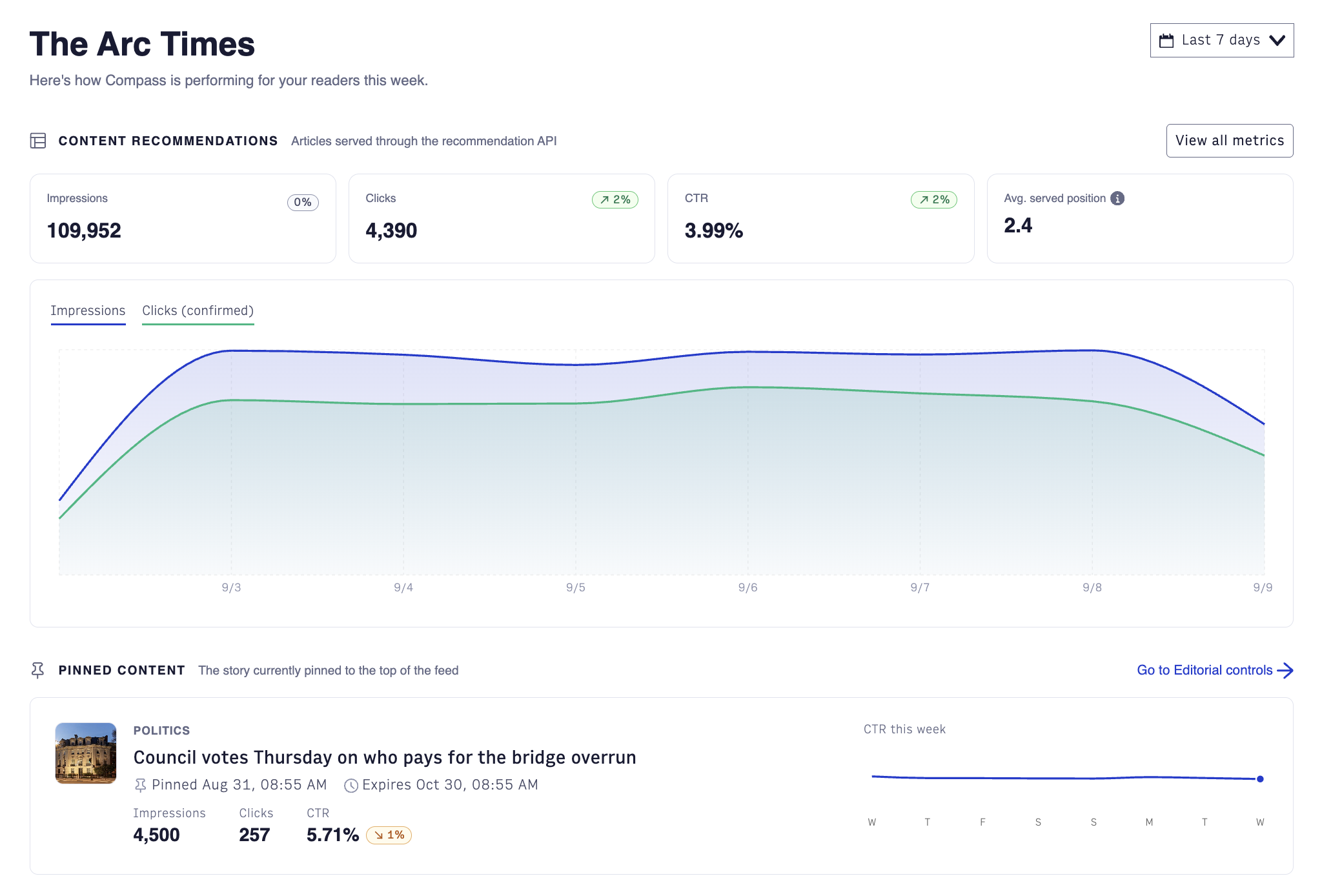
The Overview breaks out into three sections that mirror the capabilities described above:
- Content Recommendations shows impressions, clicks, CTR, and average served position across all recommendations delivered on the site, with a chart over the selected time window. Each tile compares the selected window against the window of the same length just before it. This gives editorial teams a view of how the underlying recommendation surface is performing.
- Pinned Content shows impressions, clicks, and CTR for the story currently pinned to the top of the feed over the last 24 hours. It links directly to Editorial controls so editorial teams can jump to workflows.
- Catch Up Cards shows impressions, clicks, and CTR, with a CTR-over-time chart. It links directly to Adaptive experiences for configuration.
Use the time range selector to view this information across different time frames.
For what each metric means and how to read it, see Compass Analytics Overview.
Advanced view
For a deeper technical read on the recommendation stream — clicks by type, Item Performance, and Event Stream Readiness across dimensions like volume, attribution completeness, and recency — use the View all metrics link from the Overview. This surfaces the technical health of the pipeline and is aimed at editorial operations or technical teams investigating anomalies. See Compass Analytics: Technical Reference on the developer portal.