How to Set Up Composer Preview for PageBuilder or Headlessly
When using PageBuilder
How this works:
Composer serves as a starting point in the workflow, which starts with a story that is ready to be previewed.
You click the Preview Story button, which takes you to the preview URL.
The preview URL is a PageBuilder URL that contains the story’s ID.
PageBuilder then renders the preview.
You must configure the following items to enable the preview workflow:
PageBuilder Content Source that retrieves an unpublished revision
PageBuilder Resolver
Composer Preview URL
Enable 'Access PageBuilder' permission for all roles requiring Composer preview
If your organization uses Arc Themes to build your website, see Configuring Composer for Themes.
In Composer
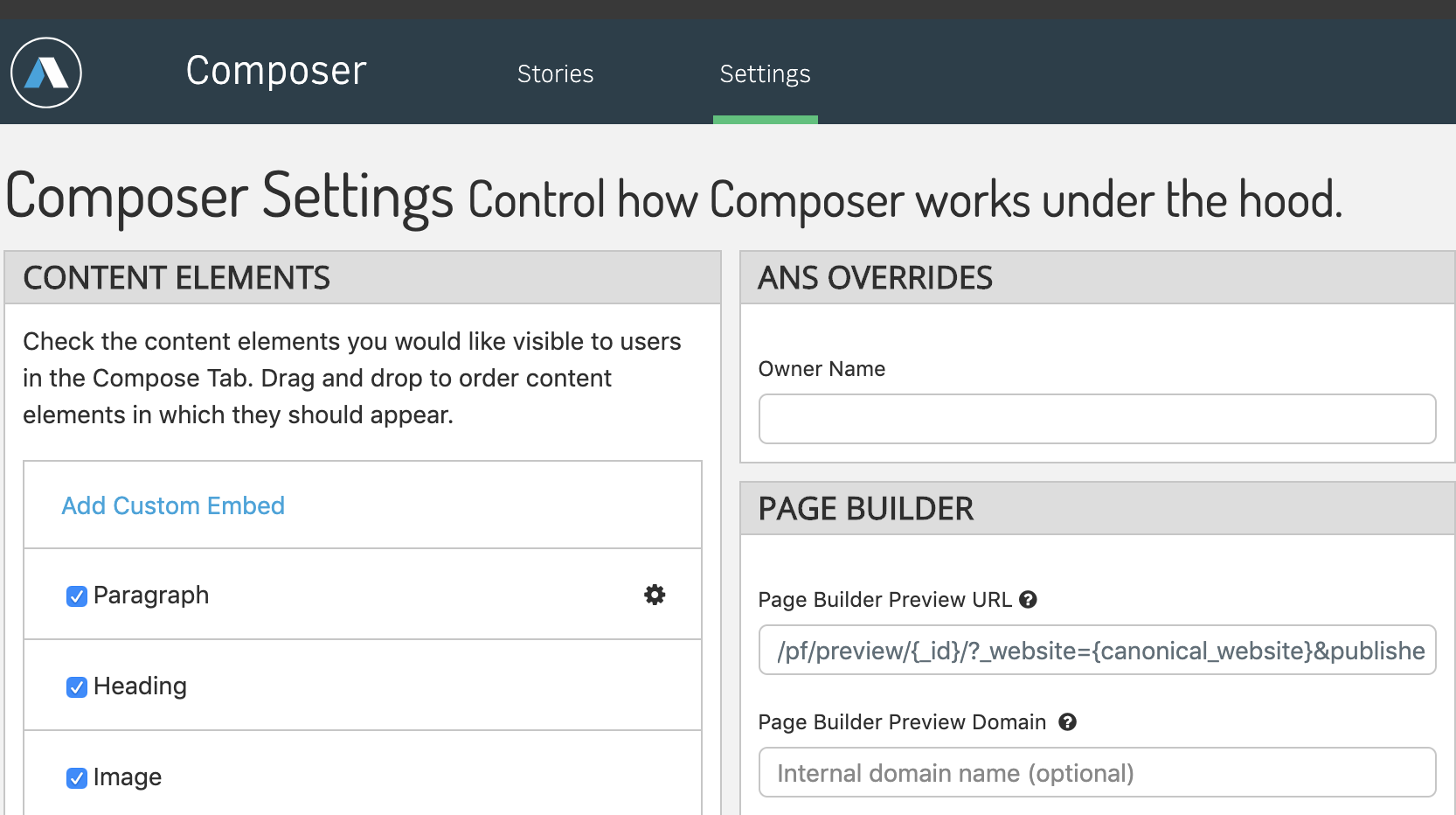
Determining the preview URL
A resolver must capture the preview URL, so it’s best to choose something easy to catch. Additionally, we recommend you include the Story ID and the website.
published=false: allows you to view unpublished stories.
 |
In PageBuilder
A content source, resolver, and template are required for the preview. The resolver maps to a default template and a content source. The content source is what retrieves the document from the content API, in this case by story ID. The template is the article template that matches your live site’s article page so you can view the story accurately.
Create Content Source
For this step, you can either:
Create a new content source that makes requests to the content API with the
published=falseparameter added. ORAlter an existing content API content source with additional logic that adds the
published=falseparameter if a condition is fulfilled (in this case, it can look for a story ID).
We’re going to go with option #1 and create a new content source.
In PageBuilder Engine, you create this in code. For this example the content source would have to call this API endpoint: /content/v4/?_id=${id}&_website=${arc-site}&published=false
Notice in the following example that the content source intends to call the Content API unpublished endpoint if it receives a story ID:
_ignoreCache=true: tells PageBuilder to ignore the cache for the current URI, which renders the latest revision for the story.
This documentation uses this as an example: /pf/preview/{_id}/?_website={canonical_website}&published=false&_ignoreCache=true
Enter your preview URL in Composer > Settings.
const pattern = key => {
  const { website_url, id } = key;

  if(website_url)
    return `/content/v4/?website=${website}&website_url=${website_url}`;

  if(!website_url && id)
    return `/content/v4/?website=${website}&_id=${id}&published=false`;
};

const resolve = key => pattern(key);

const params = {
  website_url: "text",
  website: 'site',
  id: "text"
};

const source = {
  resolve,
  params,
};

export default source;
Setup Resolver
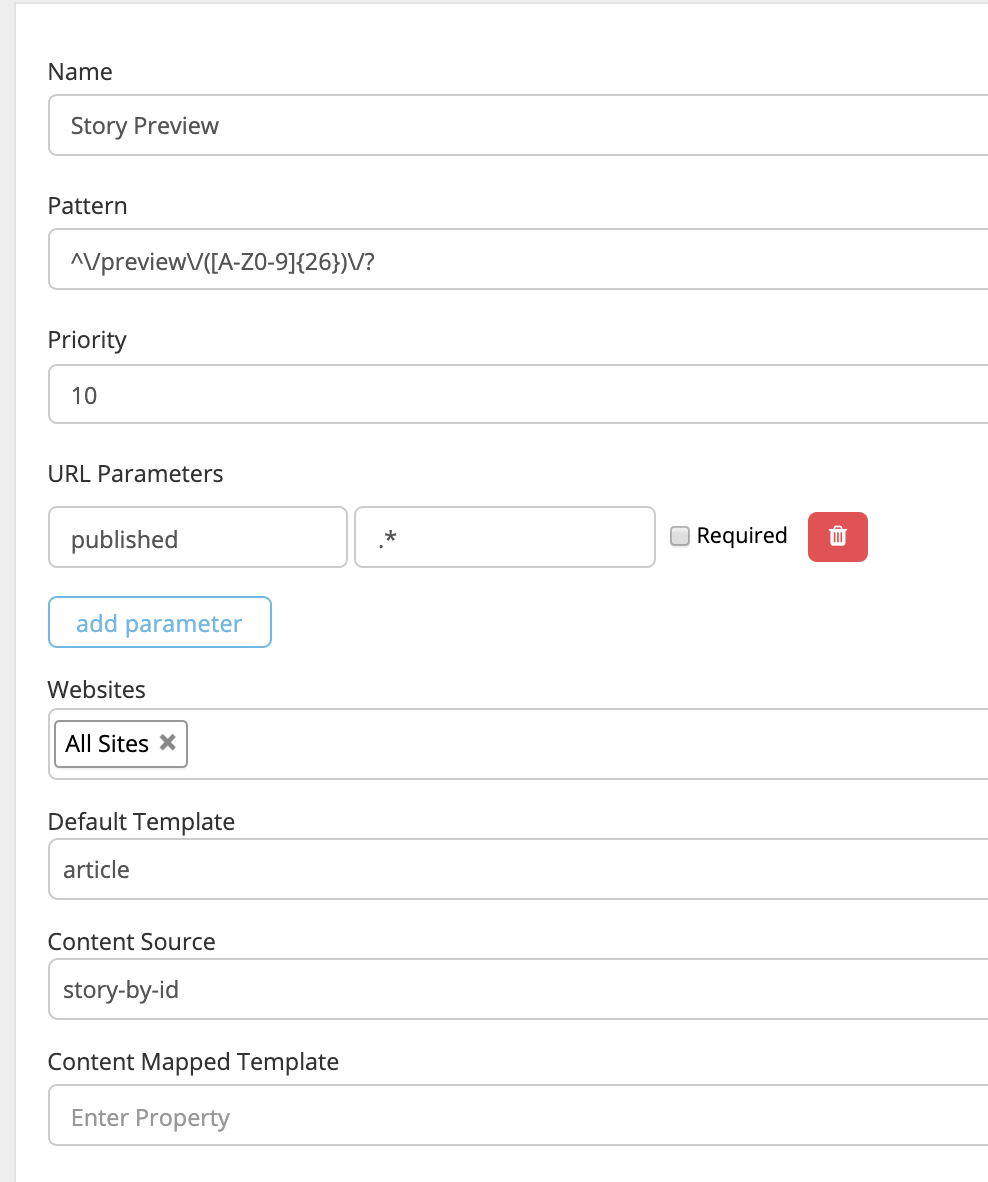
You must have a page resolver to map the incoming URL so that it matches the setting value from Composer. This is not an automated integration; it is manually configured.
Using the previous example, the resolver would look like this. Your “Default Template” and “Content Source” are specific to your setup. We recommend you use the same article template that you use for published stories.
 |
⚠️ Setting a resolver in PageBuilder makes a page/route publicly available by default. You can use Delivery tools, Available customizations to secure your composer URLs from public access.
In Permissions
With the Arc Permissions app, add the 'Access PageBuilder' privilege to all roles requiring Composer preview. This read only permission is needed to access PageBuilder, which powers the preview experience.
 |
Using the Story Preview
Back in Composer, click the story preview icon:
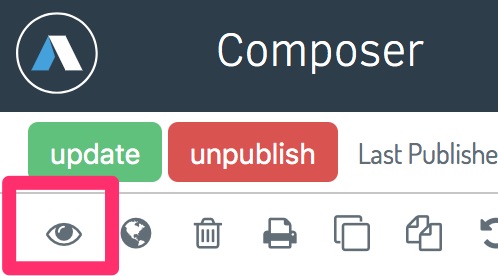 |
This button opens the link to your PageBuilder Story template with the unpublished draft rendered.
Without PageBuilder
If you do not use PageBuilder for rendering your front end, this section describes how to configure the preview functionality. If your organization uses PageBuilder, see How to Set Up Composer Preview for PageBuilder or Headlessly with a focus on PageBuilder.
Preview a story from Composer
From within Composer, you have the ability to preview a draft story as if you were a reader on the front end of your site. You can see how content looks when published to your live site by clicking the Preview icon in the top left of the story toolbar.
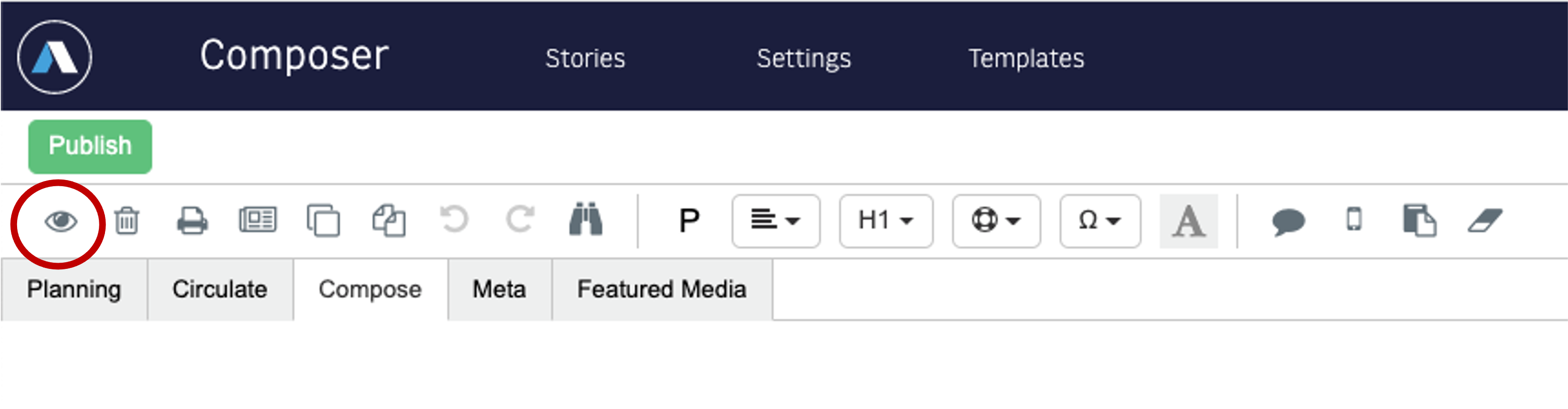 |
Clicking this button opens a new tab to preview the story. To configure this preview capability for your users, you must set up a Composer preview URL string and ensure your system is set up to fetch and render articles.
Preview works as follows:
Composer serves as a starting point in the workflow, with a user working on a story that is ready to be previewed.
The user clicks the Preview Story button, which takes them to the preview URL, containing the story ID.
That story ID is passed to Content API, along with the ‘published=false’ parameter.
The article is then rendered just like it would for a normal article.
How to create a custom preview page
Determining the preview URL
Within Composer Settings, use the section for “PageBuilder”, including preview URL and preview domain.
Use the preview URL field to set your own custom URL.
Here, instead of setting up a relative URL for PageBuilder, you can create your own URL pattern to direct to an external site, for example:
http://content.yoursite.com/preview/{_id}/?published=false&ignoreCache=true
To support live preview of recently edited content, your headless backend must make non-cached requests to Content API using the ID passed in. For example, if you received the ID ABCDEFGHIKLMNOPQRSTUVWXYZ, you would make a request to:
https://api.{orgname}.arcpublishing.com/content/v4/_id=ABCDEFGHIKLMNOPQRSTUVWXYZ&published=false&website=mywebsite
Note
For the page preview, you must always set the published parameter to false to see the most recently edited version. For more information on securely accessing Arc APIs, see How to Use Developer Access Tokens to Access the Arc XP APIs.
The Preview button within the story then opens this URL in a new tab when users click the Preview icon, fetching the story by story ID from Content API.
Required attributes for preview pageRequired attributes for preview page
Your organization must create a page at this endpoint to show the given content within your site’s experience. As long as you are able to fetch the content from Content API and turn that ANS document into a rendered article, you can do this outside of PageBuilder. The page you create should have the following attributes:
Access Content - Use Content API to pull the current version of the current story. The {_id} is passed in the request to allow you to do that.
Publish Flag - Ensure that requests you make to Content API include non-published articles. We pass this as a flag in case you want to re-purpose your primary story display code.
If you cannot support preview, you could instead consider creating a custom message on the preview URL endpoint to explain to your authors how to handle the workflow for reviewing stories prior to publication.
FAQ
Why am I getting a 500 error when I try to preview a story?
Consult your organization’s URL rules for displaying previews and pay particular attention to which metadata fields are required to generate the URL. Ensure you completed those fields because they're required to render the preview. For example, if your preview URL rule relies on SEO keywords, verify that you entered data in that field in Composer. We recommend using the story ID for purposes of a preview.
How can I securely configure preview?
If you're building a preview URL and endpoint that lives outside of PageBuilder, and therefore outside of the Arc ecosystem, your organization must build its own security protocols for this configuration.