# Adjusting the size of the PoWa Player
Source: https://docs.arcxp.com/en/products/video-center/getting-started-with-video-center/adjusting-the-size-of-the-powa-player.html
To manipulate the size of the PoWa Player, you must encapsulate the player in a container, define a class, and apply the rules from the following sections that best fit your layout requirements.
## Understanding how sizing works
You can manage the PoWa Player aspect ratio with the `data-aspect-ratio` attribute. To correctly define this attribute’s value, you divide the height unit by the width unit of the desired aspect ratio.
By default, `data-aspect-ratio` is set to `0.5625`, which is the value for horizontal videos (16:9), and is obtained from the result of dividing 9 by 16\. If you need to adjust the player for vertical videos (9:16), you can invert that operation to 16 by 9, having a result of `1.7777`.
This attribute’s value serves as a multiplier for the available video player’s width to define the height of the video.
For example, if the width rendered by the player is 806 pixels and the `data-aspect-ratio` is defined with the value 0.5625 (806 \* 0.5625), the height of the player is 453.375 pixels.
## Manipulating the width
By default, the PoWa Player grows as a function of the available width in the layout, no matter what aspect ratio you use. The best way to set the player’s width is to use the CSS rule `max-width` in the container class:
### HTML
```
...
...
```
### CSS
```
.player-container {
max-width: 300px;
}
```
## Manipulating the height
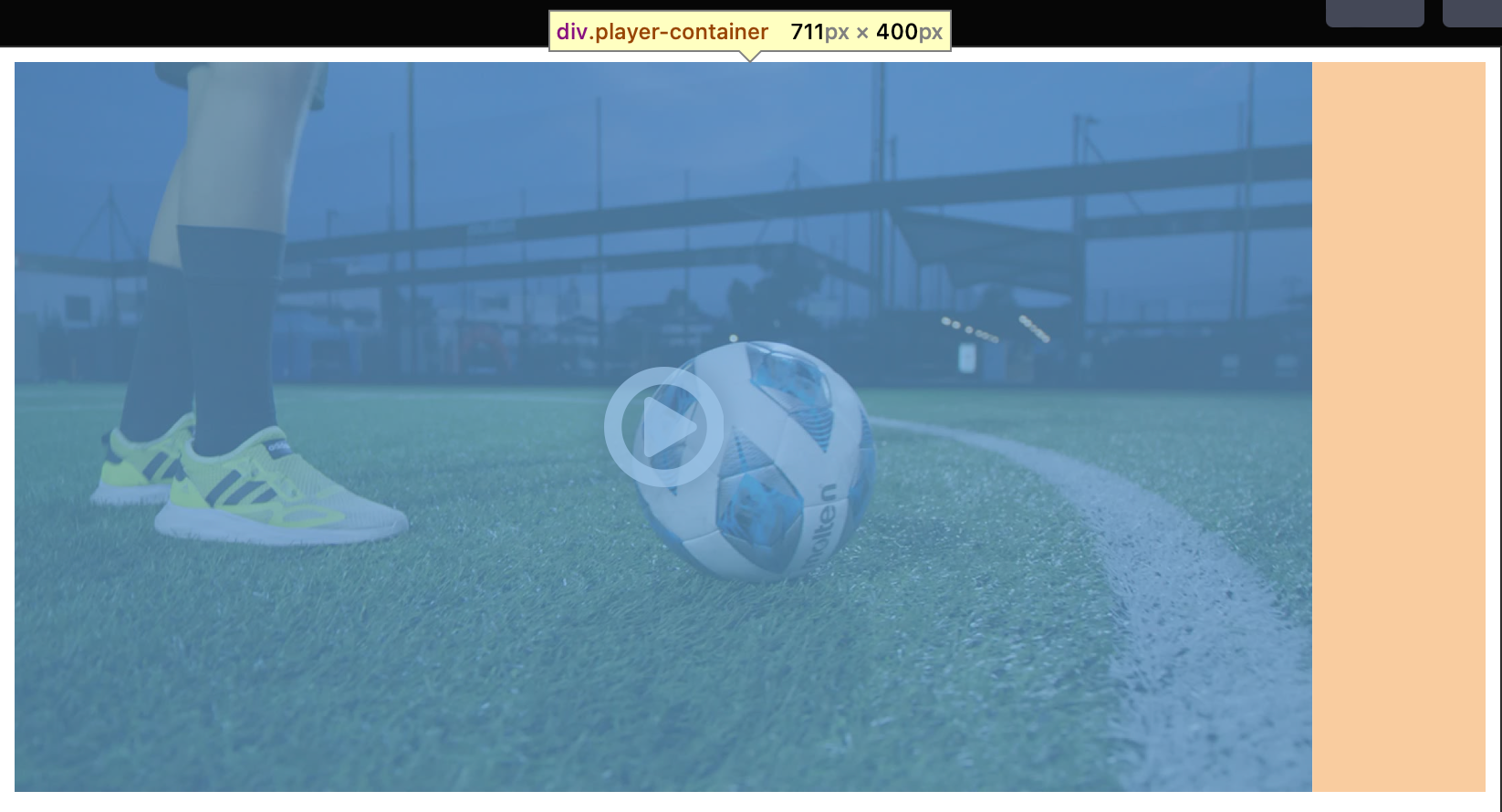
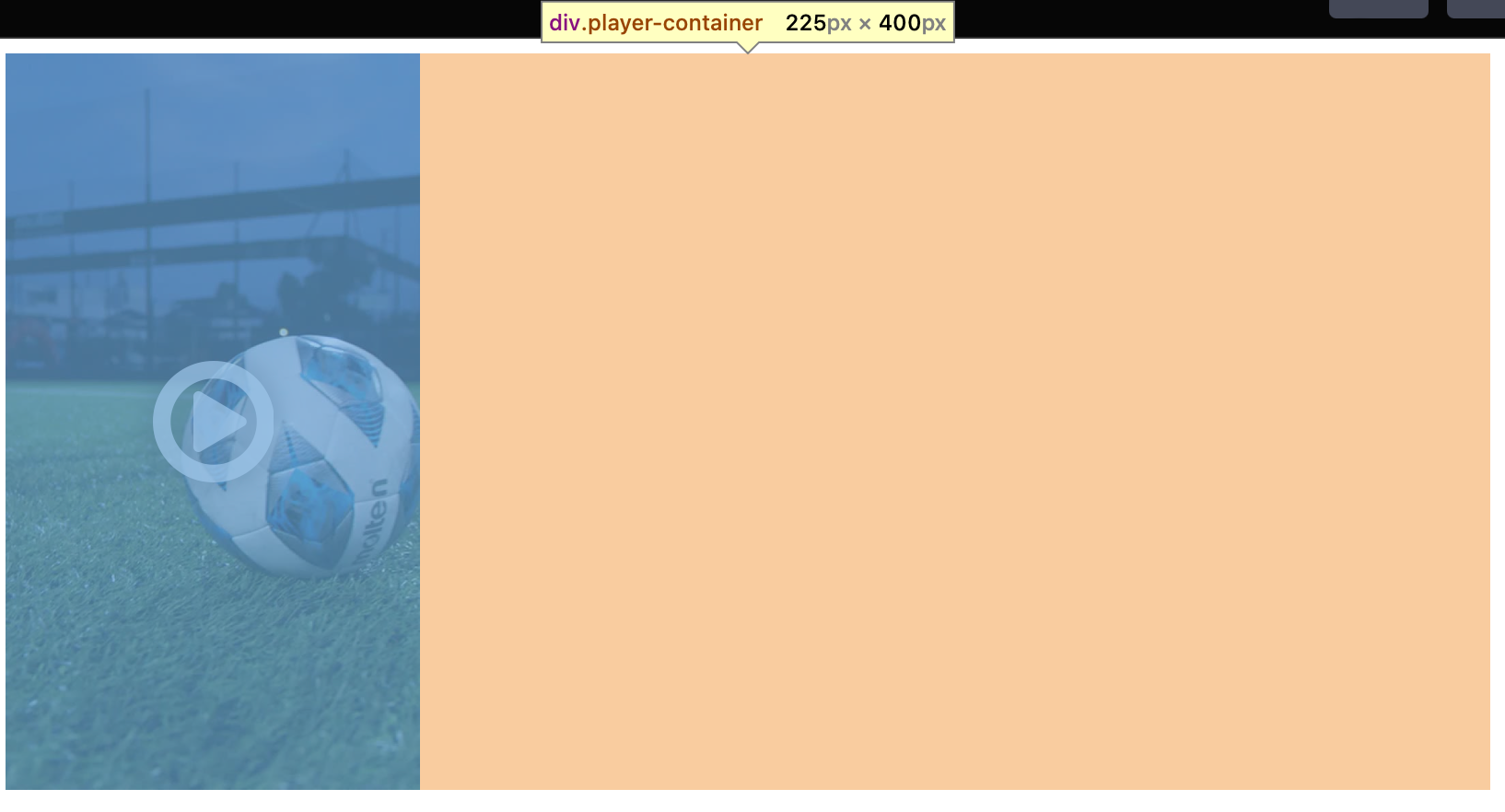
Manipulating the height is a different strategy than adjusting the width, considering the previous constraint. In the container class, you must set the opposite aspect ratio used in the player using the `aspect-ratio` rule next to the desired height value with the help of the `max-height` rule:
## Horizontal aspect ratio (0.5625)
### HTML
```
...
...
```
### CSS
```
.player-container { aspect-ratio: 1.7777; max-height: 400px; }
```
### Result
## Vertical aspect ratio (1.7777)
### HTML
```
...
...
```
### CSS
```
.player-container{
aspect-ratio: 0.5625;
max-height: 300px;
}
```
### Result
## Applying CSS rules only when the player is vertical
If you’ve configured your PoWa Player implementation to support horizontal or vertical videos, you can define specific rules for those aspect ratios. When the `data-aspect-ratio` is set to 1.7777 or 1.778, PoWa attaches a helper class called `powa-vertical` to the root element where the video player is. You can then modify the container class using the [:has](https://developer.mozilla.org/en-US/docs/Web/CSS/:has) pseudo-class.
### CSS
```
// Horizontal Videos
.player-container {
max-width: 300px;
}
// Vertical videos
.player-container:has(.powa-vertical){
aspect-ratio: 0.5625;
max-height: 400px;
max-width: unset;
}
```